How to Make My Headphones Louder on PC Without Losing Sound Quality
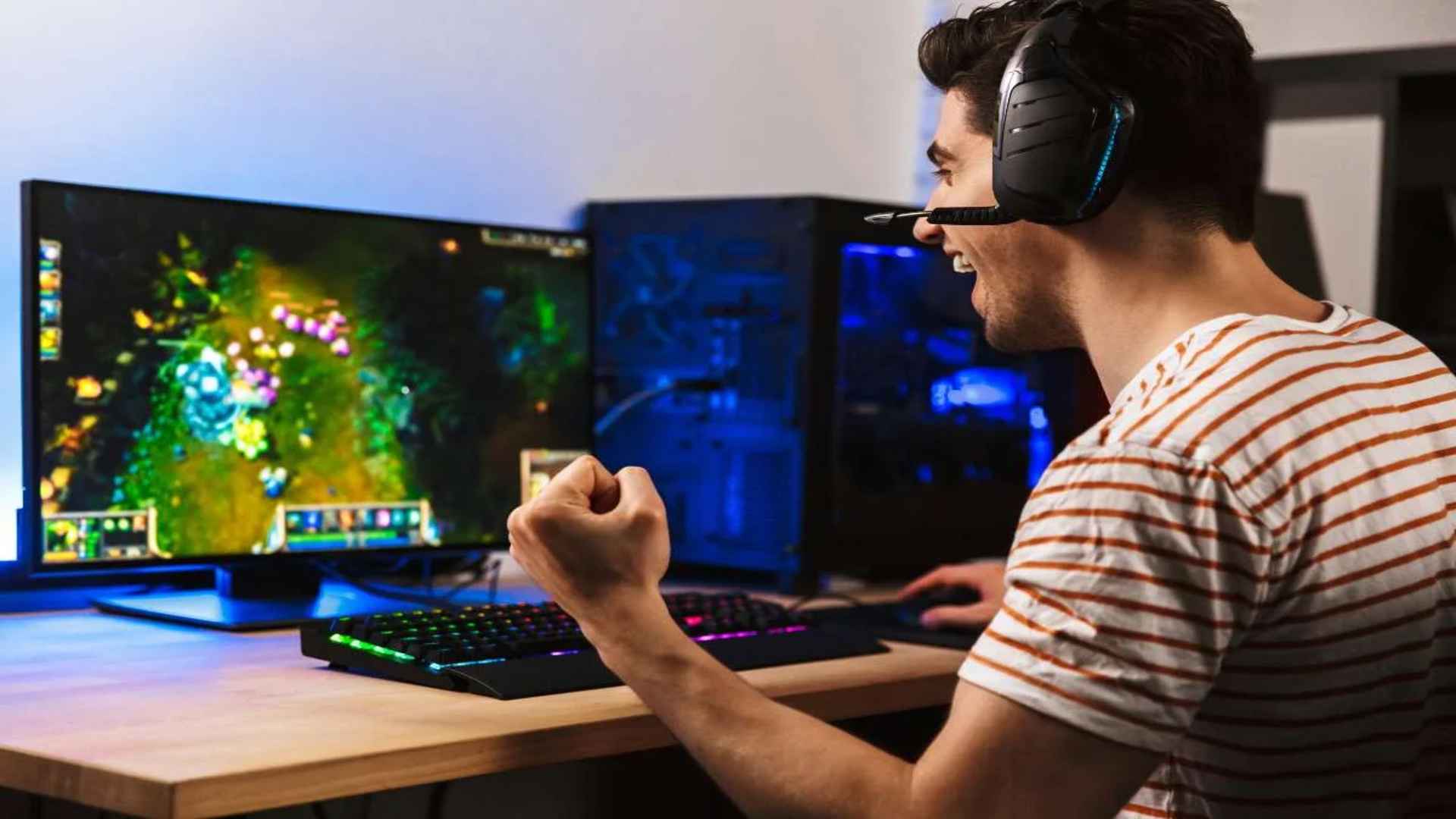
Experiencing quiet audio through your headphones while gaming or listening to music on Windows can be extremely frustrating. Pushing sound levels higher often introduces harsh distortion or reduces overall audio clarity. Fortunately, adjusting a few built-in system settings allows you to boost output volume safely while maintaining rich audio fidelity.
Adjust System Volume Settings and App Mixers
Before making advanced modifications, ensure that Windows system volume and individual application levels are set correctly. Right-click the speaker icon in your taskbar to open the Volume Mixer and check that no specific media program is muted or limited. Setting master sliders appropriately prevents artificial software bottlenecks from stifling your headphone output.
Many media players and web browsers feature independent volume sliders that can override main operating system configurations. Raising these application-specific settings ensures your headphones receive full audio signal strength without introducing digital clipping. Taking a moment to verify these basic controls establishes a solid baseline for overall volume output.
Enable Windows Audio Enhancements
Windows includes native sound processing features designed to optimize audio performance across different playback devices. Access your sound control panel, select your headphone properties, and navigate to the enhancements tab. Enabling options like Loudness Equalization uses subtle dynamic compression to boost quieter frequencies without blowing out peak sounds.
This feature equalizes overall volume levels across movie dialogue, game effects, and background music tracks. By balancing quiet and loud passages, you experience noticeably louder audio without forcing the master volume into distortion levels. It provides a clean, software-based boost that protects speaker drivers while improving general clarity.
Configure Audio Format and Bitrate Quality
Audio playback quality heavily depends on the sample rate and bit depth settings configured in your sound device settings. High-resolution formats provide accurate signal reproduction, allowing individual sound layers to stand out clearly at higher output gains. Navigating to advanced properties allows you to select 24-bit studio quality for optimal playback fidelity.
Using clean audio reproduction techniques ensures that boosting your sound level does not result in muddy frequencies or background noise. If you encounter system issues related to playback performance, learning how to lower VRAM usage and improve gaming performance can help optimize overall system stability. Proper system resource allocation ensures audio processing runs smoothly alongside graphics-heavy tasks.
Utilize External Hardware Amplifiers
If software adjustments fall short, high-impedance headphones may require dedicated hardware amplifiers to reach adequate volume levels. Onboard computer sound cards often lack the power needed to drive studio-grade headphones effectively. Connecting a compact USB Digital-to-Analog Converter (DAC) or external amp supplies clean power directly to the drivers.
Dedicated headphone amplifiers raise decibel levels significantly without introducing harmonic distortion or background hiss. This hardware solution preserves dynamic range and delivers crisp instrument separation across all volume ranges. Investing in an external audio interface remains the most effective long-term approach for audiophiles needing substantial volume boosts.